
We may earn a commission if you buy through links on this page. It never changes a score or a ranking. How we make money
The bottom line
Good scheduling coverage for small teams, with a paid subscription after the 30-day trial.
When to Work helps teams build and share staff schedules, track availability and time off, and manage shift coverage. Its listed subscription covers up to 10 employees, with unlimited manager and employee use and computer and mobile access.
There’s no free plan. The pricing page lists a 30-day trial, then introductory rates of $28 monthly or $205 yearly. That’s reasonable if scheduling is a recurring headache, but teams should check the price and options for more than 10 employees before growing into the tool.
Good fit if
- Teams with up to 10 employees
- Shift-based scheduling and coverage
- Managers sharing schedules by mobile
Skip it if
- Teams that need a free plan
- Businesses needing published integration details
- Teams already above 10 employees
ScoresHow it rates
What works
- One subscription covers up to 10 employees
- Managers and employees have unlimited use
- Includes computer and mobile access
- Staff can request time off and trade shifts
- AutoFill considers preferences, time off, and overtime
What doesn't
- No free plan is listed
- The free trial lasts only 30 days
- Standard rates are higher than introductory rates
- Pricing above 10 employees isn't listed
- Integration details aren't specified in the feature list
01Who When to Work is for
When to Work is for small teams that need to publish shifts and keep track of who can work them. The listed Subscription (up to 10 employees) suits a business with one to 10 staff members; managers and employees can use it without a separate user limit.
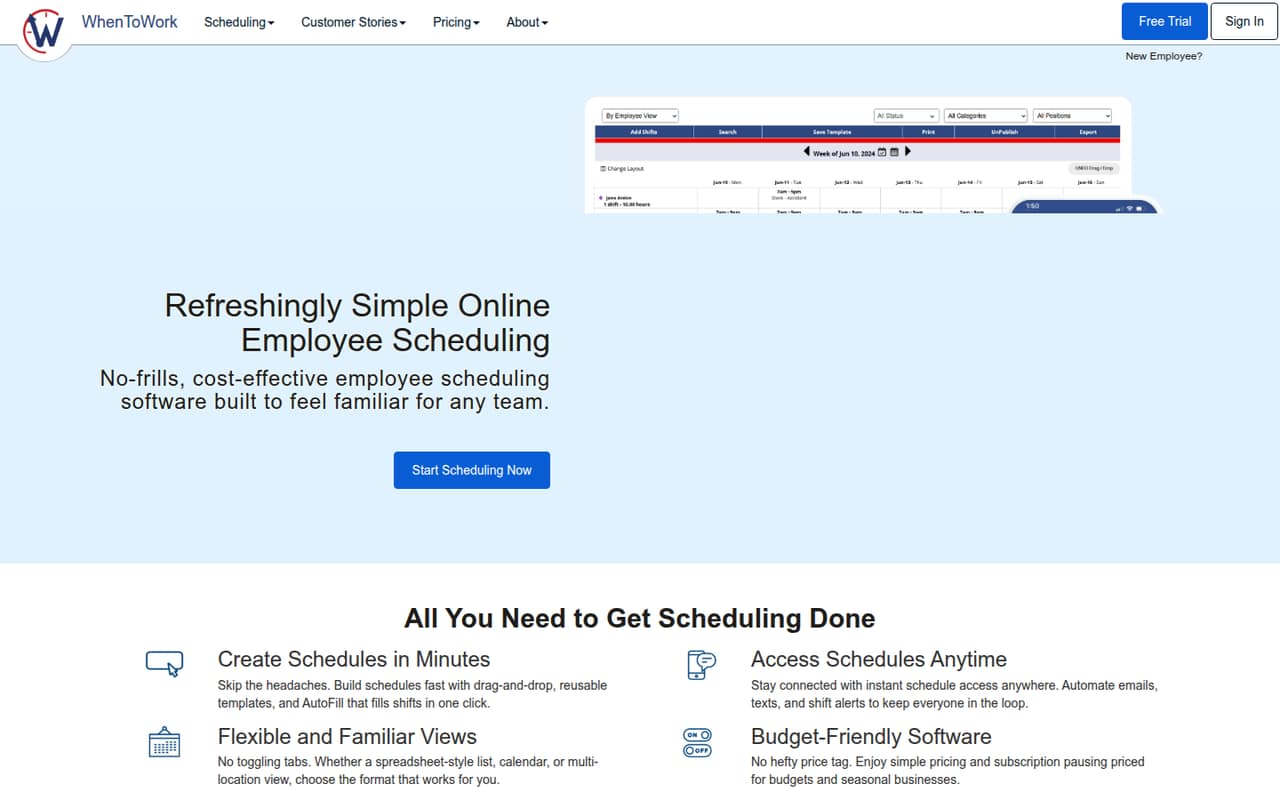
The job is straightforward: build schedules with drag-and-drop tools or reusable templates, then share them through computer and mobile access. Staff can set availability, request time off, or trade shifts, with managers overseeing those changes. AutoFill can fill shifts while considering preferences, time off, and overtime. Schedule views include spreadsheet-style, calendar, and multi-location options.
For a small team watching its monthly bills, the introductory monthly price is $28, or $205 yearly. That is a paid tool, not a free scheduler. It makes the most sense if shift gaps, schedule changes, and keeping employees informed are regular tasks. Teams with more than 10 employees should ask WhenToWork about the right plan and price before signing up.
02When to Work free plan and trial
When to Work has no free plan listed. The pricing page lists a 30-day free trial, so a small team can try the service before paying, but it doesn’t describe a lasting free tier or its limits after the trial.
The listed Subscription (up to 10 employees) includes unlimited manager and employee use, computer and mobile access, and the 30-day trial. The pricing notes list introductory rates of $28 monthly or $205 yearly, with standard rates of $38 monthly or $273 yearly. Ask WhenToWork whether the trial includes every feature you need and whether it requires payment details. If you need to keep scheduling for free after the trial, this isn’t the right fit based on the listed plans.
03What a small team pays for When to Work
The listed Subscription (up to 10 employees) costs $28 monthly or $205 yearly at the introductory rate; the annual price is also listed as $17.08 per month. Standard rates are $38 monthly or $273 yearly. These are subscription prices for up to 10 employees, not separate prices for each headcount.
For one employee, the introductory subscription works out to $28 per month or $17.08 per month on annual billing. For three employees, the same subscription is $28 monthly or $205 yearly, which averages about $9.33 per employee monthly or $5.69 per employee monthly on annual billing. For five, it is still $28 monthly or $205 yearly, averaging $5.60 or $3.42 per employee monthly, respectively. These per-person figures divide the subscription price by headcount; they are not separate listed rates.
The pricing lists no add-ons. It does not give a price for teams above 10 employees, so ask for a quote if you’re near that limit. Check whether the introductory rates apply to your account before choosing monthly or annual billing.
04Getting started with When to Work
A small team’s first tasks are likely to be setting up employees and availability, creating shifts, and sharing a schedule. The product description lists drag-and-drop scheduling and reusable templates, plus spreadsheet-style, calendar, and multi-location views. AutoFill can account for preferences, time off, and overtime when filling shifts.
The feature list suggests a manager can build the schedule while employees handle availability, time-off requests, and shift trades. It doesn’t spell out a setup checklist, the time required, or a list of integrations. We’d ask WhenToWork about importing existing employee or schedule data and connecting any tools your team relies on before committing.
Computer and mobile access are included in the listed subscription, and WhenToWork supports iOS and Android. A team that mainly needs scheduling and shift updates can start with those basics; teams relying on other systems should confirm how those systems fit into the workflow.
05When small teams outgrow When to Work
The clearest point to check is headcount: the listed subscription covers up to 10 employees. If your team is growing beyond that, ask WhenToWork what plan fits and what it costs before you add people. The pricing notes don’t list a larger-team rate, so we can’t give a reliable estimate for the next step.
A team may also outgrow the tool if it needs integrations that aren’t named in the feature list, or if its scheduling process depends on capabilities beyond shift building, coverage, availability, time off, and trades. That doesn’t mean those options are unavailable; it means you should confirm them with the vendor.
For a team still under 10 employees, the same subscription price covers the listed employee range. The decision is less about a published per-seat jump and more about whether the scheduling features justify a paid plan. Compare the standard rates of $38 monthly or $273 yearly with your budget, since the listed introductory rates are $28 monthly or $205 yearly.
Questions people ask
Is When to Work free?
The pricing page lists no free plan. It lists a 30-day free trial, followed by a paid Subscription (up to 10 employees). Ask WhenToWork whether the trial includes the features your team needs.
How much does When to Work cost?
The pricing notes list introductory rates of $28 monthly or $205 yearly for the Subscription (up to 10 employees). Standard rates are $38 monthly or $273 yearly. Confirm which rate applies before signing up.
Can employees use When to Work on a phone?
Yes. The listed subscription includes computer and mobile access, and WhenToWork supports iOS and Android. The product description also lists schedule access and shift alerts.
Can staff request time off or trade shifts?
Yes. Staff can set availability, request time off, and trade shifts, with manager oversight. The feature list also says AutoFill considers preferences and time off.
How long is the When to Work trial?
The pricing page lists a 30-day free trial. It doesn’t specify whether the trial requires payment details or whether every feature is included, so check those details with WhenToWork.