We may earn a commission if you buy through links on this page. It never changes a score or a ranking. How we make money
A small team doesn’t automatically need a paid video editor. DaVinci Resolve, Kdenlive, and Shotcut all have free plans, so they’re sensible places to start if your team can handle desktop editing and a learning curve. For simple HD videos, Clipchamp is another free option; for shared social-video work, Kapwing is more team-oriented, but its listed starting price is $16 and seat costs add up. Prices below are listed starting prices, not a guaranteed bill for your team. Check seat rules and billing terms before inviting colleagues.
Quick picksThe shortlist
 DaVinci ResolveDaVinci ResolveBest free editor · Free
 KdenliveKdenliveBest free all-rounder · Free
 ShotcutShotcutBest for mixed formats · Free
 ClipchampClipchampBest for quick HD · Free
 KapwingKapwingBest for social teams · $16/mo
 WeVideoWeVideoBest for shared projects · $4.99/mo
 JitterJitterBest for motion graphics · $15/mo
 Wondershare FilmoraWondershare FilmoraBest for creator videos · $4.17/mo
 PowtoonPowtoonBest for branded explainers · $8/mo
01Compared at a glance
| Tool | Score | From | Free plan | Trial |
|---|---|---|---|---|
| DaVinci ResolveDaVinci Resolve | 8.5 | Free | Yes | — |
| KdenliveKdenlive | 7.5 | Free | Yes | — |
| ShotcutShotcut | 7.4 | Free | Yes | 1 week |
| ClipchampClipchamp | 6.4 | Free | Yes | — |
| KapwingKapwing | 6.5 | $16/mo | Yes | — |
| WeVideoWeVideo | 6.6 | $4.99/mo | Yes | — |
| JitterJitter | 7.0 | $15/mo | Yes | — |
| Wondershare FilmoraWondershare Filmora | 6.2 | $4.17/mo | Yes | — |
| PowtoonPowtoon | 7.0 | $8/mo | Yes | — |
02The picks, in detail
- Best free editorDaVinci ResolveDaVinci Resolve
DaVinci Resolve is our top pick for a small team that wants capable editing without a listed starting price: the free plan is available at no cost. The tool is suited to finished videos and includes color tools, but the product description warns that teams should be willing to learn it. Confirm licensing and team-use terms before making it your shared workflow.
What works
- Free edition does not expire
- Studio is a one-time purchase
- Homepage highlights tools for editors and colorists
What doesn't
- New users may need time to learn it
- Studio monthly and annual prices are not published
- Cloud Project Libraries add a monthly charge

- Best free all-rounderKdenliveKdenlive
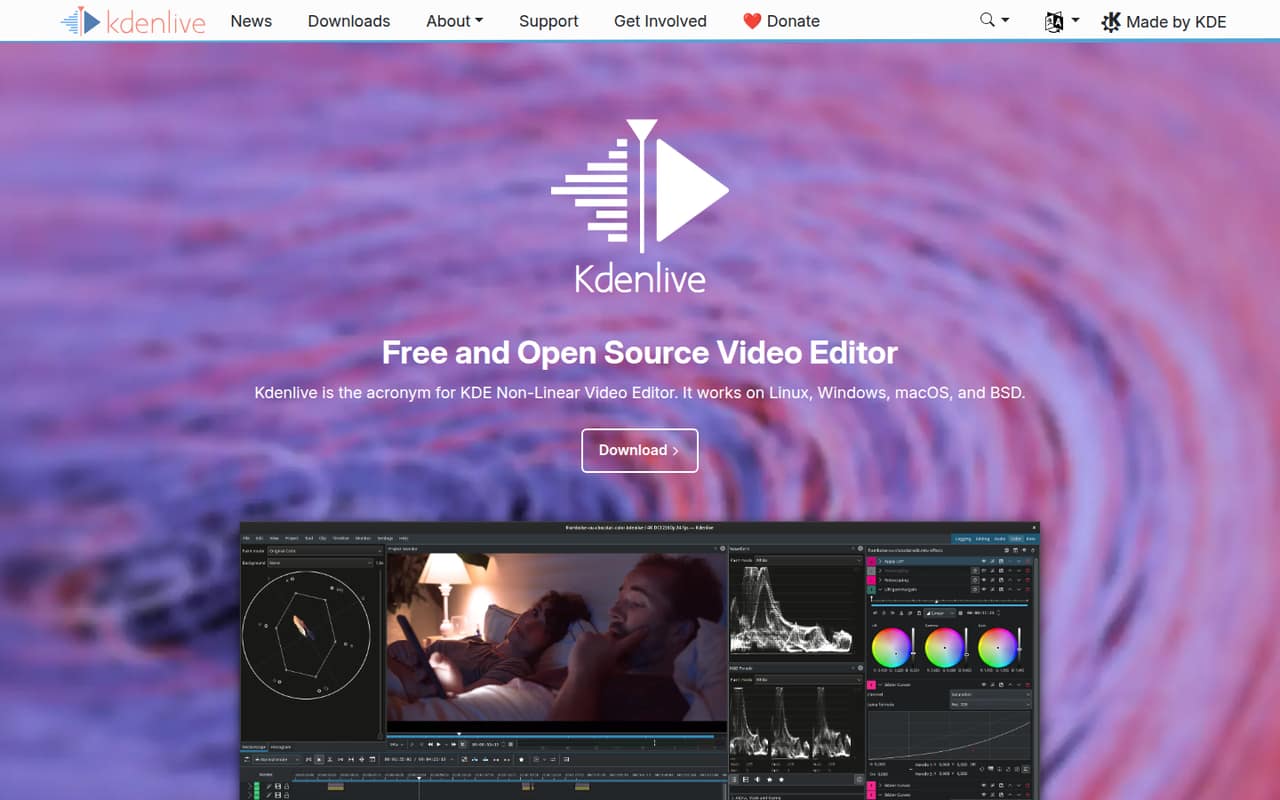
Kdenlive is a free option for teams that want broad editing features without a per-seat price in the listed starting plan. It supports multiple operating systems, but the product description flags a learning curve and occasional bugs. It makes the most sense when your team can spend time learning the editor and doesn’t need a polished shared-review workflow.
What works
- Free and open-source
- Runs on Linux, Windows, macOS, and BSD
- Includes audio, effects, and color tools
What doesn't
- Some users report crashes and bugs
- Some users find the interface confusing
- GPU acceleration complaints appear on Reddit
- Best for mixed formatsShotcutShotcut
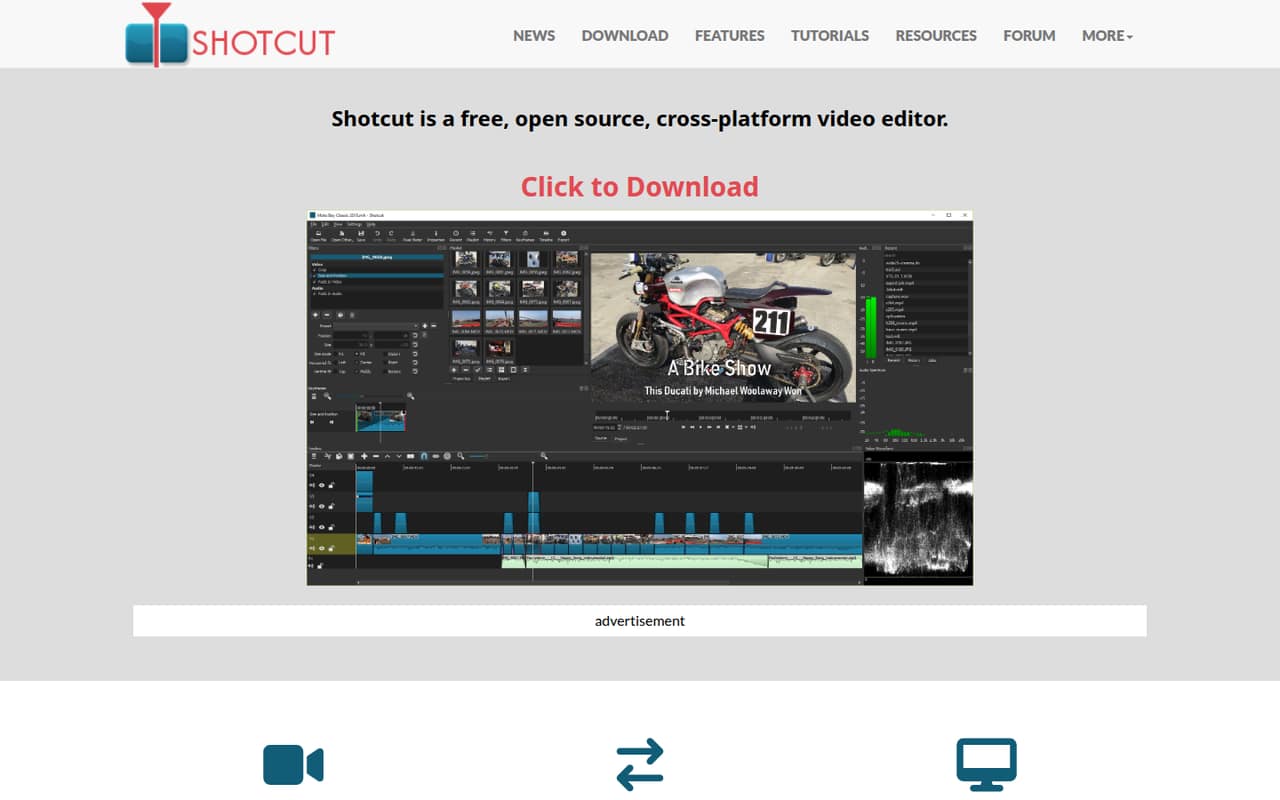
Shotcut is a $0 starting option for budget-conscious teams, with support for varied media formats and three operating systems. Its product description also cautions that it isn’t built around shared review workflows. Choose it when editors can work independently and keeping software costs down matters more than centralized feedback.
What works
- Free plan permits commercial use
- No listed watermarks or time limits
- Supports hundreds of formats through FFmpeg
What doesn't
- Some Reddit users report slow-feeling basic edits
- Some users find the interface unfriendly
- No team seat pricing is listed
- Best for quick HDClipchampClipchamp
Clipchamp has a free plan and is positioned for simple HD team videos, making it a reasonable first stop for straightforward edits. Its listed starting price is not stated. The value is less clear once your team needs premium features, so check which features are included and whether every editor needs a paid account before building a recurring workflow around it.
What works
- Free unlimited watermark-free exports
- Free exports up to 1080p
- Screen recording works on Windows and Mac
What doesn't
- Direct Premium price is not published
- Work license costs depend on Microsoft 365
- Free plan excludes premium assets
- Best for social teamsKapwingKapwing
Kapwing is aimed at teams making short social videos, with subtitles, translations, and shared editing feedback among its listed use cases. It has a free plan, but the free tier is described as tight. The listed starting price is $16, and paid seat costs add up, so ask for the total price for your team before moving regular work onto it.
What works
- Timeline editor combines and trims clips
- AI tools generate videos, subtitles, and voiceovers
- Collaboration features support shared edits and feedback
What doesn't
- Free exports carry a watermark
- Free exports are limited to 720p and four minutes
- Free plan includes only 30 export minutes monthly
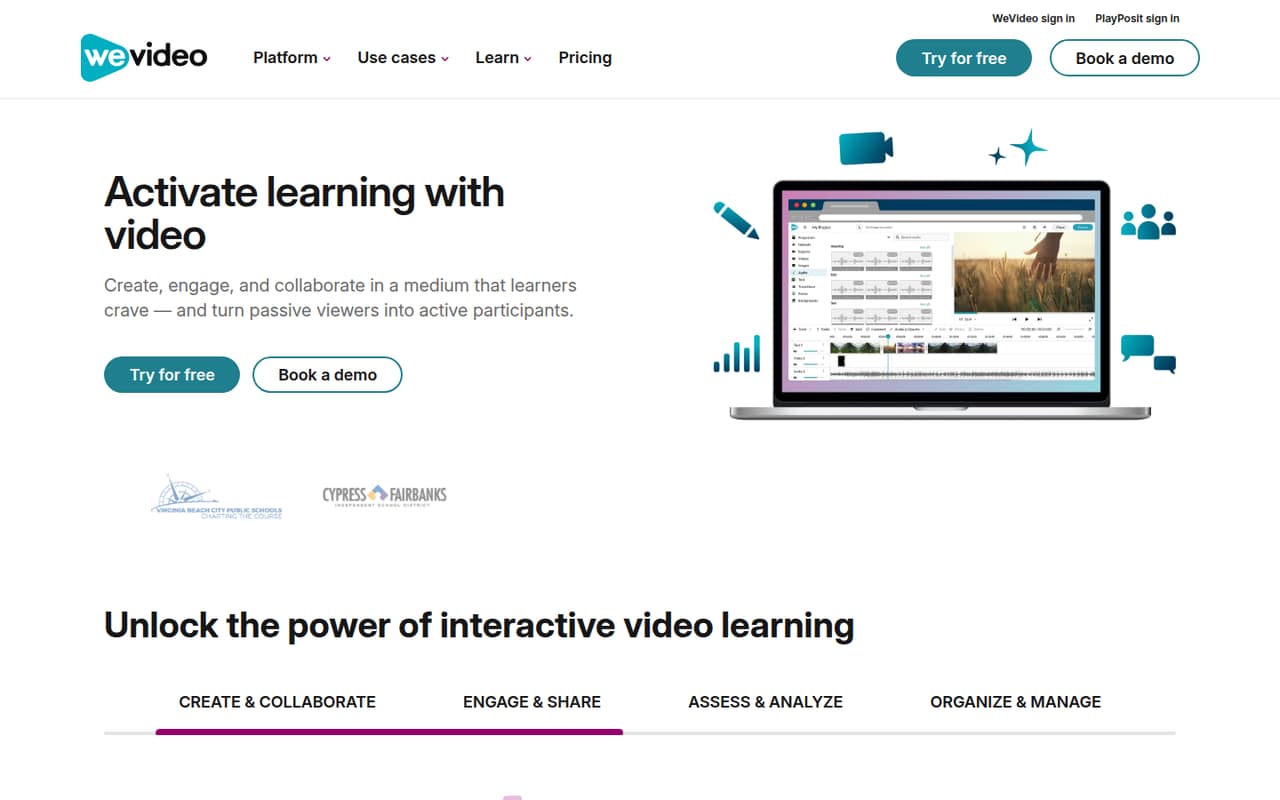
- Best for shared projectsWeVideoWeVideo
WeVideo’s free plan and listed starting price of $4.99 make it worth considering for simple video work shared by a small team. It is also positioned for learning projects and short solo edits. The key question is the seat math: confirm which plan covers your editors, what the free tier limits, and what your team’s total will be.
What works
- Makes videos, GIFs, podcasts and interactive lessons
- Free plan includes 1 GB of storage
- Paid plans offer unlimited publishing at higher tiers
What doesn't
- Free publishing is capped at five minutes monthly
- Free exports are limited to 480p
- Pricing for five collaborative seats is not published
- Best for motion graphicsJitterJitter
Jitter is a browser-based option for teams making regular animations, with feedback-sharing among its listed uses. It has a free plan and a listed starting price of $15; the free tier has meaningful limits, and Pro is priced per editor. It fits teams focused on motion graphics better than those looking for a general-purpose video editor.
What works
- Free plan includes video, GIF, and Lottie exports
- Pro removes the watermark and supports 1080p at 60fps
- Shared workspaces support feedback and approvals
What doesn't
- Free limits teams to three workspace files
- Free exports have a watermark and 720p ceiling
- Pro costs $19 monthly per editor

- Best for creator videosWondershare FilmoraWondershare Filmora
Filmora is designed for regular creator videos and includes AI editing tools in its listed use cases. A free plan is available, and the listed starting price is $4.17. The catch for a team: each person needs a license for clean exports. Count the editors who need to export before comparing its price with free tools.
What works
- AI tools cover video, images, music, and object removal
- Text-to-video and prompt editing are listed features
- Free plan lets you try basic editing
What doesn't
- Free exports carry a Filmora watermark
- Paid licenses cover one user/device
- Standalone monthly subscription prices are not published
- Best for branded explainersPowtoonPowtoon
Powtoon suits teams making recurring explainers, training videos, and internal communications with branded templates. It has a free plan and a listed starting price of $8. The product description flags watermark and yearly-cost questions, so check export restrictions and the total annual cost for each person who needs to create or download finished videos.
What works
- Free plan includes screen recording
- Templates and drag-and-drop editing
- AI tools cover scripts, voiceovers, and avatars
What doesn't
- Free exports include a Powtoon watermark
- Free videos are limited to three minutes
- Lite limits watermark-free exports to five monthly
03How we chose
We ranked these tools for teams of one to ten, weighing whether a free plan is listed, the listed starting price, the likely setup burden, and fit for common business-video work. A free plan matters most when the team can use it without losing essential workflow features; low entry pricing matters less if every editor needs a separate license. We also treat clear vendor documentation and consistent user reports on Reddit as useful signals to check before buying. Where setup or seat details need confirmation, we call that out rather than guessing.
04Work out the real cost for your seats
A listed starting price is not the same as your team’s total. Filmora’s product description says each person needs a license for clean exports, while Jitter’s Pro plan is priced per editor. Kapwing’s paid seat costs add up, and WeVideo’s description recommends checking the seat math. Ask the vendor for the total covering every person who edits, exports, or reviews—not just the person who opens the account.
Before paying, confirm the billing period, whether the quoted price changes with annual billing, and what the free tier puts behind a paywall. Powtoon’s description specifically flags watermarks and yearly cost; Clipchamp’s value is less clear once premium features are needed. If the team can produce its work on a free plan, start there and upgrade only when a specific limit blocks a real task.
05Match the editor to your workflow
For finished videos and color work, DaVinci Resolve is a strong free starting point if your editors are ready to learn it. Kdenlive also offers broad editing features for free, with a learning curve and occasional bugs noted in its product description. Shotcut supports varied media formats, but it is not positioned around shared review. Those are better fits for editors who can work independently than for teams that need a central feedback loop.
If your team makes quick HD clips, consider Clipchamp. For short social videos and shared feedback, look at Kapwing; for recurring animation or branded explainers, Jitter and Powtoon are more specialized choices. Setup effort varies: some tools are browser-based, while others involve a more involved desktop workflow. Ask who will set up the project, organize media, and handle feedback. If several people need to edit the same project, confirm the collaboration workflow before committing.
Questions people ask
Is CapCut free or paid?
Check CapCut’s current pricing page for its free and paid terms before budgeting; we can’t quote a verified current price here. If you want a free editor from this shortlist, DaVinci Resolve, Kdenlive, and Shotcut each have a free plan listed.
How much does Premiere Pro cost?
Adobe’s current pricing page is the place to confirm Premiere Pro’s price and billing terms. We don’t have a verified figure to quote. For comparison, this shortlist includes free-plan options and paid tools with listed starting prices, but those prices may not reflect the total for several editors.
Which Adobe software is best for video editing?
We can’t rank Adobe’s video products without verified details on their current features and plans. For a small team choosing from this guide, DaVinci Resolve, Kdenlive, and Shotcut are free-plan options; check each vendor’s licensing and workflow terms before choosing.
What software do most YouTubers use to edit videos?
We can’t verify a single most-used editor. For a small team making creator videos, Filmora is positioned for regular creator content, while Clipchamp and DaVinci Resolve offer free plans. Compare export limits, seat requirements, and how much setup your editors are ready to take on.